Q:
How do I start Sprunki Reversed Phase 9?
A:
Wait for the progress bar on the loading screen to finish, then press the round green flag in the middle of the frame. The stage with nine silhouettes opens after that.
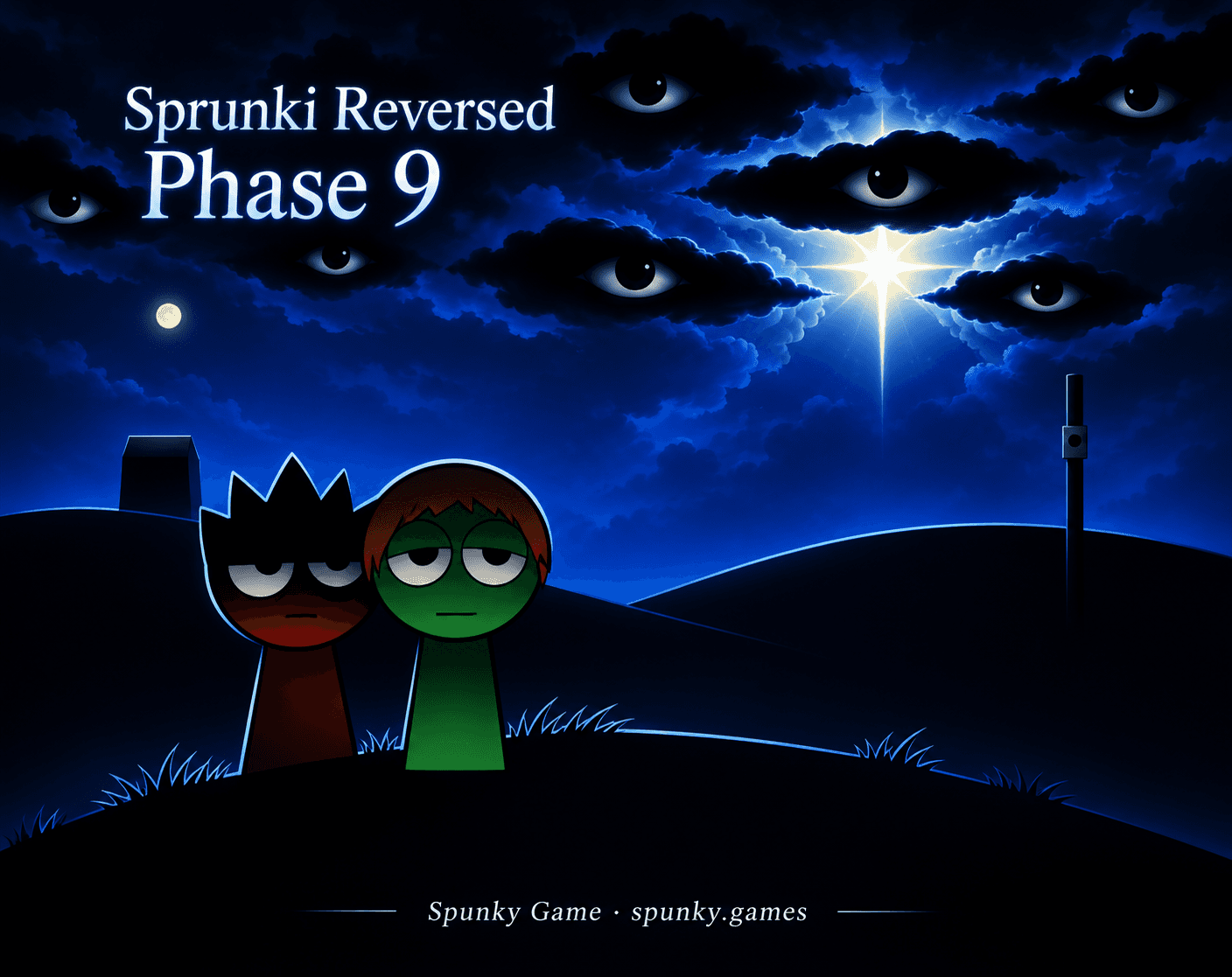
Play Sprunki Reversed Phase 9 in your browser.
Share Sprunki Reversed Phase 9




Sprunki Reversed Phase 9 is a dark browser Sprunki mod. A loading screen with a progress bar comes first, followed by a round green flag button. Press it and the stage opens on a deep blue night sky where clouds carry staring eyes and one bright star hangs overhead. Nine black silhouettes stand in a row, and four rows of shadowy character icons sit underneath. Drag an icon onto a silhouette and the outline turns into a full character. The whole scene stays gloomy and half hidden. If you want a brighter band afterward, Monster Choir’s seven masked monsters offer a lighter mood.
To play Sprunki Reversed Phase 9 online, wait for the loading bar, then press the round green flag button in the middle. The dim preview gives way to the nine silhouettes with the icon rows below them.
Drag an icon from the rows onto an empty silhouette. The outline turns into a full character; one icon from the third row, for example, gives a figure in a wide hat holding a guitar. The icon you used goes dark in its row.
To reset the Sprunki stage, click the circular arrow in the top right corner. With one character on stage, the click removes it, brings the silhouette back and returns the icon to its normal brightness.
Sprunki Reversed Phase 9 plays inside the page on Spunky Game, so nothing has to be installed. A loading screen with a progress bar appears first; leave the tab open until the round green flag shows up, then click it to open the stage. A fullscreen button sits in the bottom right corner of the frame for a bigger view. On a desktop browser, drag the icons with the mouse. You can return to spunky.games at any time and launch the game again from the same page. For another browser toy that needs no install, Resonant Atlas and its eight editable voices is one click away.
Phase 9 tip: scan four icon rows at a time before filling silhouettes. The first row holds ten larger tiles, and the lower rows are packed tighter, so it is easy to skip one.
💡Drop a single icon, look at the character it turns into, then decide whether to keep it before trying the next.
After a drop, check three places: the silhouette, the small buttons that appear under the character, and the icon row, where the tile you used goes dark.
💡The square tiles above the stage carry no labels, so their purpose is not shown on screen. Click one at a time so you can tell which change came from which tile.
Phase 9 leans on mood more than brightness. Black figures against a blue night make each added character feel like a small reveal instead of a routine click.
Most icons hide what they hold, and the silhouettes give nothing away. You only learn who a tile belongs to by dropping it on the stage and watching the outline change.
The circular arrow puts the row back to silhouettes, so trying a different icon costs one click. Rhythm fans who prefer set targets can try Emberbeat’s two-lane drum pieces instead.
Wait for the progress bar on the loading screen to finish, then press the round green flag in the middle of the frame. The stage with nine silhouettes opens after that.
Drag an icon from the rows at the bottom onto a silhouette. The outline turns into a character, three small buttons appear under it, and the icon you used goes dark.
Click the circular arrow in the top right corner. With one character on stage, the click removes it and its icon lights up again.
No. Phase 9.5 has its own page on Spunky Game. This page covers Phase 9 only.
Eyes peer out of the clouds above the performers, and a single white star flickers at the top of the scene. The backdrop sets the tone as soon as the stage opens.
Phase 9 shows nine silhouettes side by side, each one an outline waiting for an icon to be dropped on it.
More than forty icons fill four rows, and most are dimmed or partly hidden. A question mark tile and a few glowing ones stand out from the rest.
A placed character gets three small buttons beneath it: a crossed-out speaker, a pair of headphones and an X. A used icon stays dark in its row.